A little preparation helps
Start with the right photo.
Choose the scene you want to make. Check the framing, file and details before you upload.
Show the doorway and a place to stand.
Take a clear photo of the empty entrance. Include the door and some floor or steps, so the scene has room for Santa.
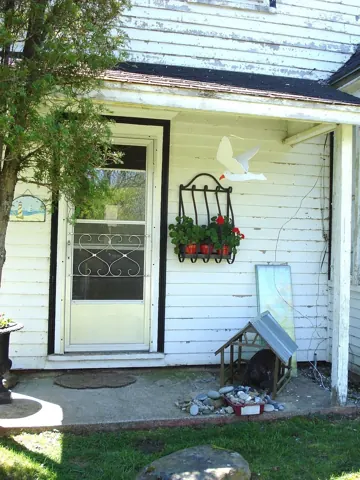
Before you choose: Avoid a close-up of the door handle or a frame filled by a person.
If your photo will not open
Check the file first.
- File type
- JPG, PNG or WebP. HEIC and HEIF work only where your browser can open them.
- File size
- Up to 40 MB.
- Dimensions
- At least 320 pixels on each side after any crop.
- Framing
- Very wide or tall photos may be cropped through the centre. Keep the subject away from the edges.
If an iPhone photo will not open, save a JPG or PNG copy. Use the original photo where possible; a small thumbnail may be too small.
From your scene to a short video
What happens next?
- 01
Pick the format and photo.
Watch a matching sample, then choose your scene. The Call format needs first names instead of a home photo.
- 02
Add the personal details.
Use first names only. If you add a personal note, keep it short and kind, then review the proposed line before approving it.
- 03
Make it, then check the finished video.
Check the price in the maker before you start. Generation usually takes 5 to 10 minutes; holiday queues can take longer. Watch the finished video privately and check its sound before sharing it.
A few useful answers.
Should my child be in the photo?
No. Use an empty room, entrance, house exterior or toy elf photo that you have permission to use. Keep people and private details out of the frame.
Do I need a real security camera?
No. A normal photo can be used for the photo-based formats. Santa Cam does not connect to your camera account.
Do I need a photo for the Santa Call?
No. The Call format uses a fixed workshop scene and accepts up to three first names. It is a recorded pretend call, so Santa cannot hear or answer a new question.